Terraform Website Deployment Project
Automated deployment of a static website to cloud infrastructure using
iTerraform and Nginx. Goal of this project was to learn more about
infrastructure as code (IaC) and to get better at using Terraform.
In this project walkthrough, I’ll be guiding you on how to deploy a web application on Azure using Terraform.
At the end of this walkthrough, you’ll have a fully working infrastructure-as-code setup.
Prerequisites
- Azure account
- Terraform
- Azure CLI
- A website saved locally
Step 1: Authenticate using Azure CLI
First we need to authenticate before we can access our Azure resources. To athenticate using Azure CLI, enter this command:
az login
To set your Azure subscription-ID, enter this command:
az account set --subscription="YOUR_SUBSCRIPTION_ID"
Step 2: Create Terraform project directory
Create a new directory and make sure it follows this structure:

Place your website inside the folder called “www”.
Step 3: Write Terraform configuration file
Create a file called main.tf, this will be the main configuration file. Here’s how my main.tf looks like:
terraform {
  required_providers {
    azurerm = {
      source  = "hashicorp/azurerm"
      version = "~> 4.0"
    }
  }
}

provider "azurerm" {
  features {}
}

# 1. Create the Resource Group
resource "azurerm_resource_group" "web_rg" {
  name     = "terraform-static-site"
  location = "austriaeast"
}

# 2. Create the Storage Account
resource "azurerm_storage_account" "static_store" {
  name                     = "davidaterraform"
  resource_group_name      = azurerm_resource_group.web_rg.name
  location                 = azurerm_resource_group.web_rg.location
  account_tier             = "Standard"
  account_replication_type = "LRS"

  static_website {
    index_document = "index.html"
  }
}

# 3. Automatically upload your index.html
resource "azurerm_storage_blob" "index_html" {
  name                   = "index.html"
  storage_account_name   = azurerm_storage_account.static_store.name
  storage_container_name = "$web"
  type                   = "Block"
  content_type           = "text/html"
  source                 = "www/index.html"
}

# 4. Output the URL
output "website_url" {
  value = azurerm_storage_account.static_store.primary_web_endpoint
}
Step 4: Deploy the infrastructure using Terraform
In order to deploy the website on Azure using Terraform, enter this set of commands:
terraform init
terraform plan
terraform apply
After deployment, Terraform will output your website’s URL.
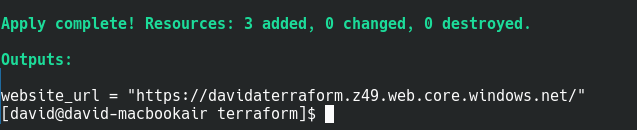
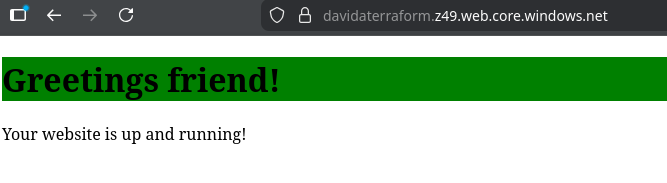
Once your website has been deployed, let’s check if the website is functioning properly by entering the URL into your browser.
Step 5: Delete resource
If you would like to delete the recently deployed website, enter this command:
terraform destroy
Summary
In this project walkthrough, we have:
- Been using Terraform to automate the infrastructure deployment on Azure
- Hosting a static website with HTTPS support on Azure
- Learnt the basics of Terraform